Explains every step from application to your first working search, with real
screenshots, nothing skipped. No technical knowledge required.
resvisor.com · extranet.resvisor.com · Version 1.4 · October 20, 2026
What is this portal for?
Resvisor Agency API lets you search and book our hotel · tour · cruise inventory
from your own system. You show search results to your customer on your own
site/software and sell directly from us — your commission is applied automatically on every sale.
To use it you need an API key. You get this key from the portal at
extranet.resvisor.com, the agency panel. This manual shows you how to use that panel from scratch.
What can you sell right now?
🏨 Hotel
🧳 Tour
🚢 Cruise
✈️ Flights
🚐 Transfers
Hotel · Tour · Cruise are available now. Flights and Transfers
are not yet available for sale.
There are two kinds of key
Sandbox
Test key. Try as much as you like — no real reservation is
created, no money/debt is charged. You build your integration with this.
Live
Real key. Your bookings are actually created and posted as debt to your
current account. Issued after Woxx approval.
Roadmap
Apply → Set password → Sign in → Sandbox key → Test → Live access.
Everything is explained one by one below. No need to rush — go in order.
1
Apply
You are visiting the portal for the first time — you first need to submit a partnership application.
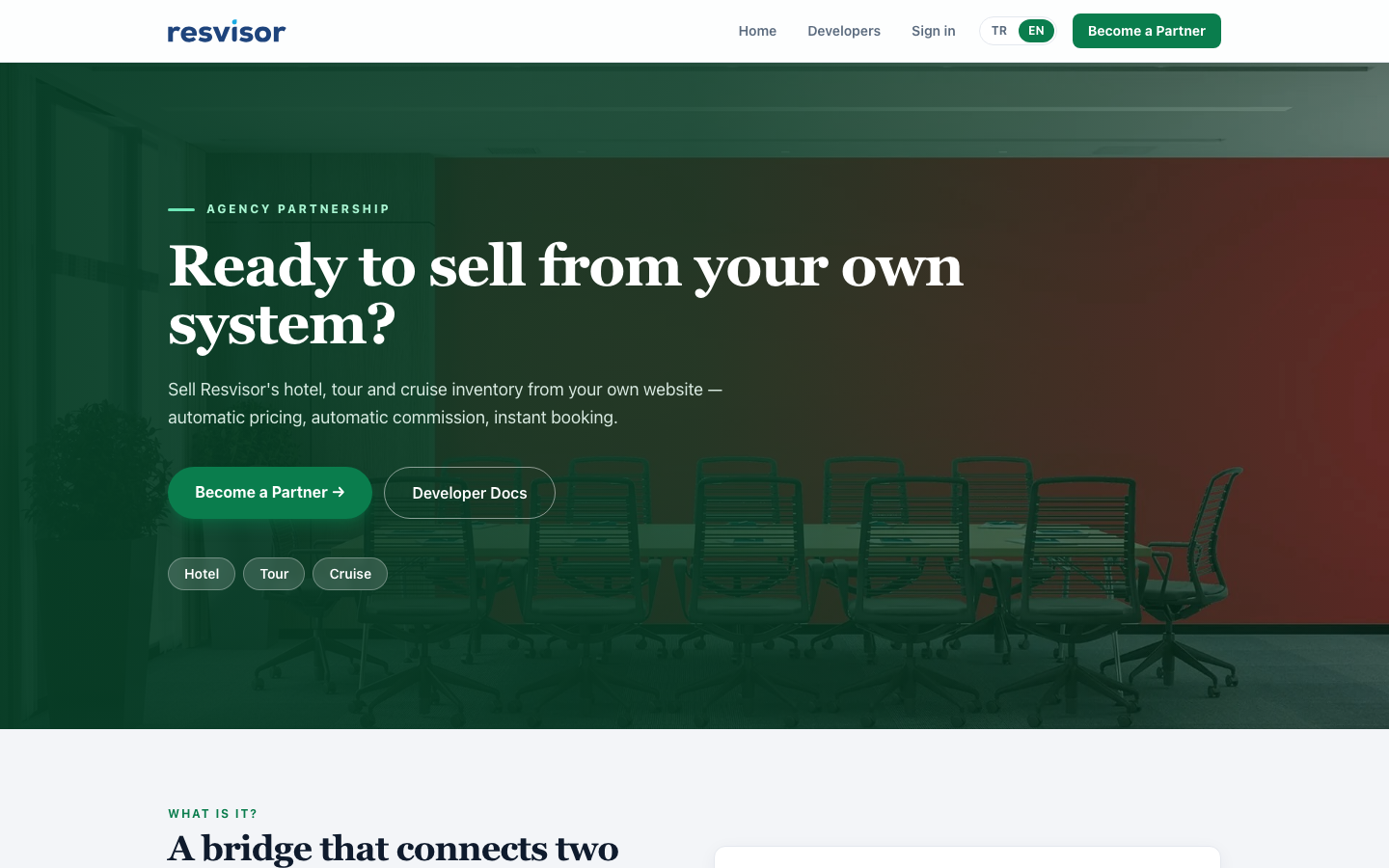
Open resvisor.com in your browser.
Click the Become a Partner button at the top right.
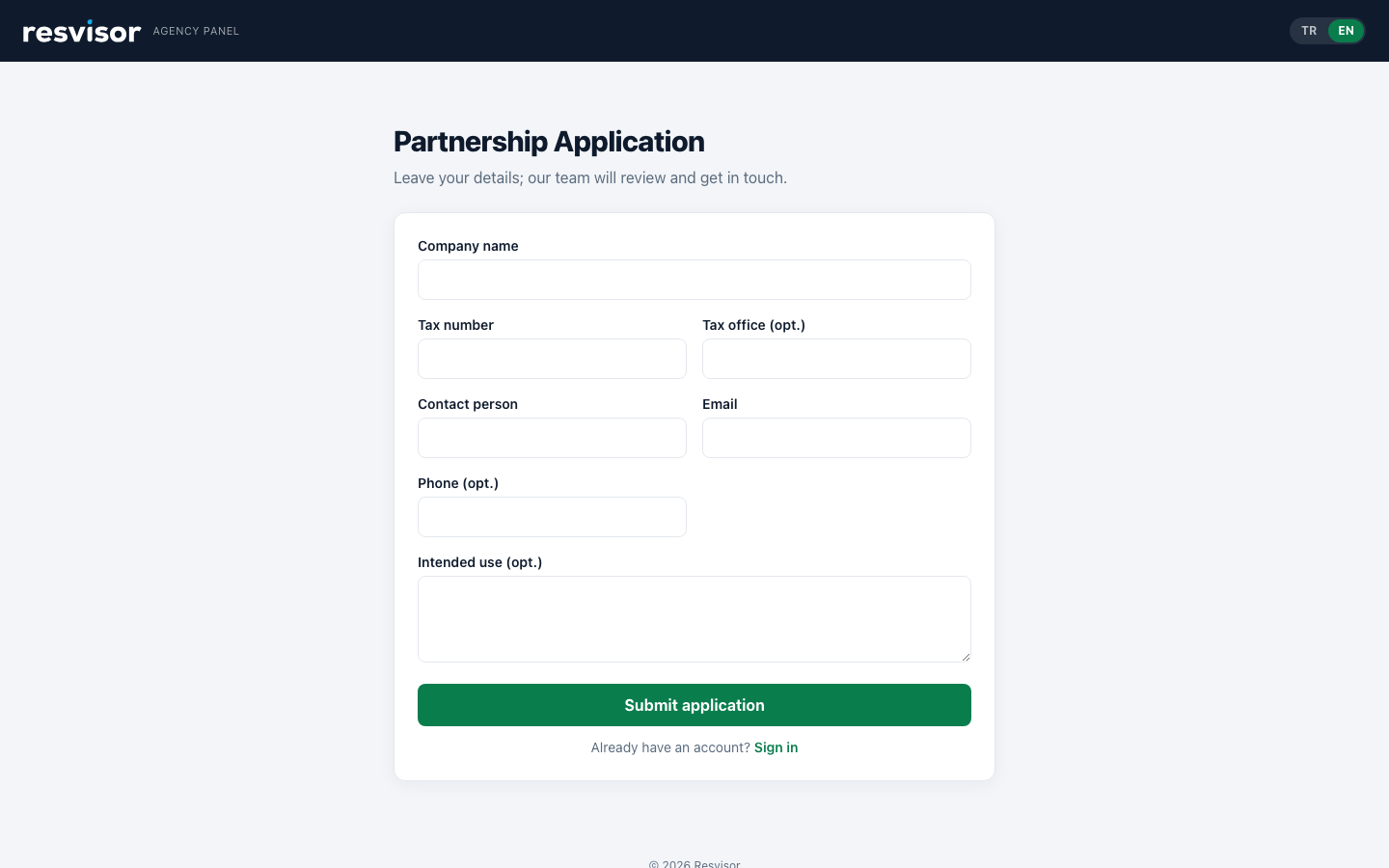
The application form opens on extranet.resvisor.com. Fill in the form: Company name, Tax number, Contact person and
Email are required. Tax office, phone and intended use are optional.
Click Submit application. Our team reviews your application.
The resvisor.com home page — top right has Become a Partner and Sign in.Application form — enter your company and contact details, then submit.
If you already have an account
Don't fill in the form; go straight to Sign in. A second application
with the same email is not needed.
2
Set your password
Once your application is approved you receive an email — you create your password from it.
Check the email inbox you used in the application. (If it's not there, check spam/junk.)
Click the "Set password" link in the email.
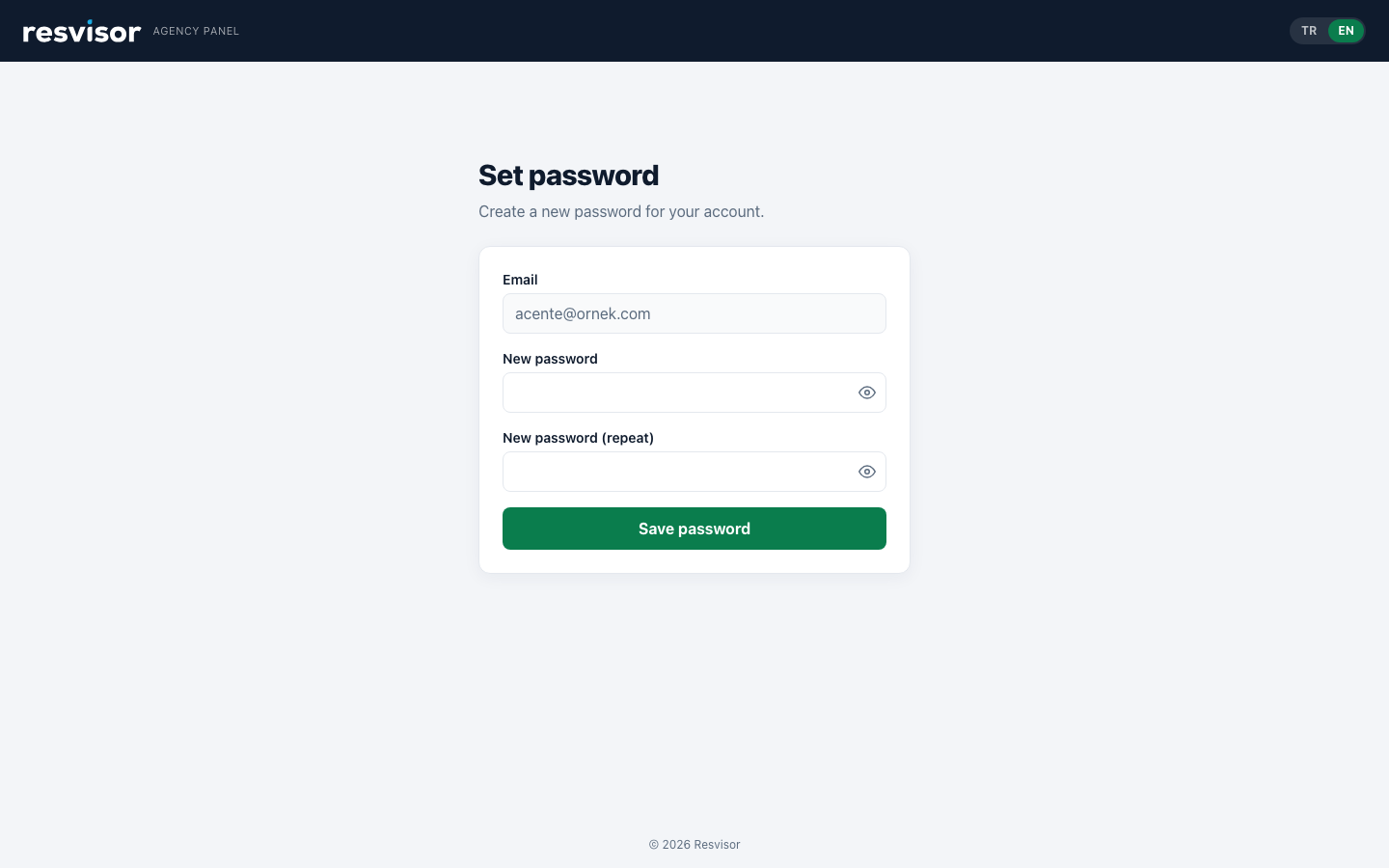
On the screen that opens, type your new password twice and click Save password.
Your password is saved; you can now sign in.
Set password — your email comes pre-filled, you just type the password.
Tip
Choose a strong password (at least 8 characters, letters + digits). If you forget it, use
"Forgot password" on the sign-in screen to reset it via the same email method.
3
Sign in
Your account is ready — sign in to reach the panel.
Open extranet.resvisor.com in your browser (the Sign in link at the top right of resvisor.com also takes you there).
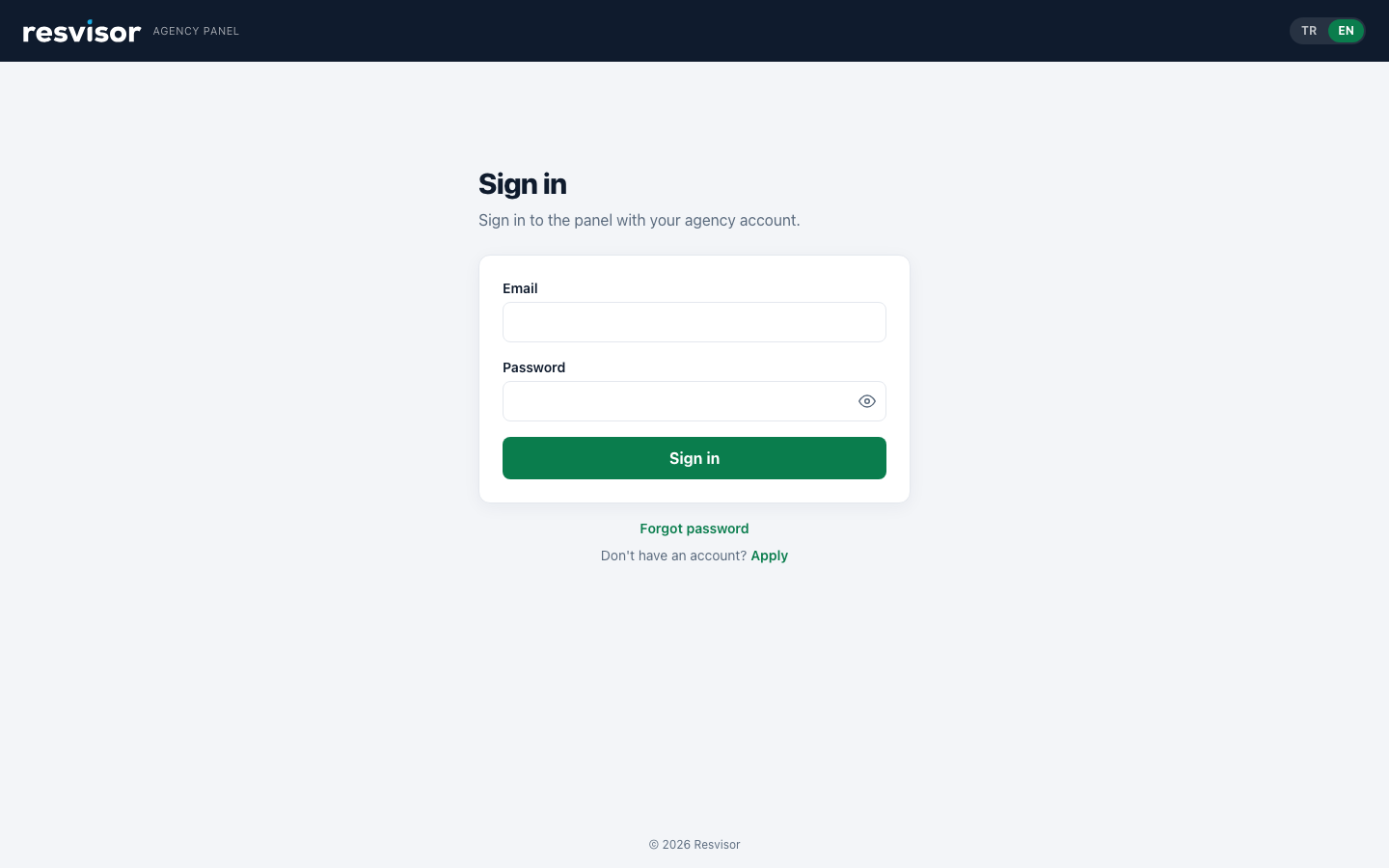
Enter your email and the password you set.
Click Sign in. The Dashboard opens; your API keys are under API Access in the left menu.
Sign-in screen — email + password.
4
Get to know the panel
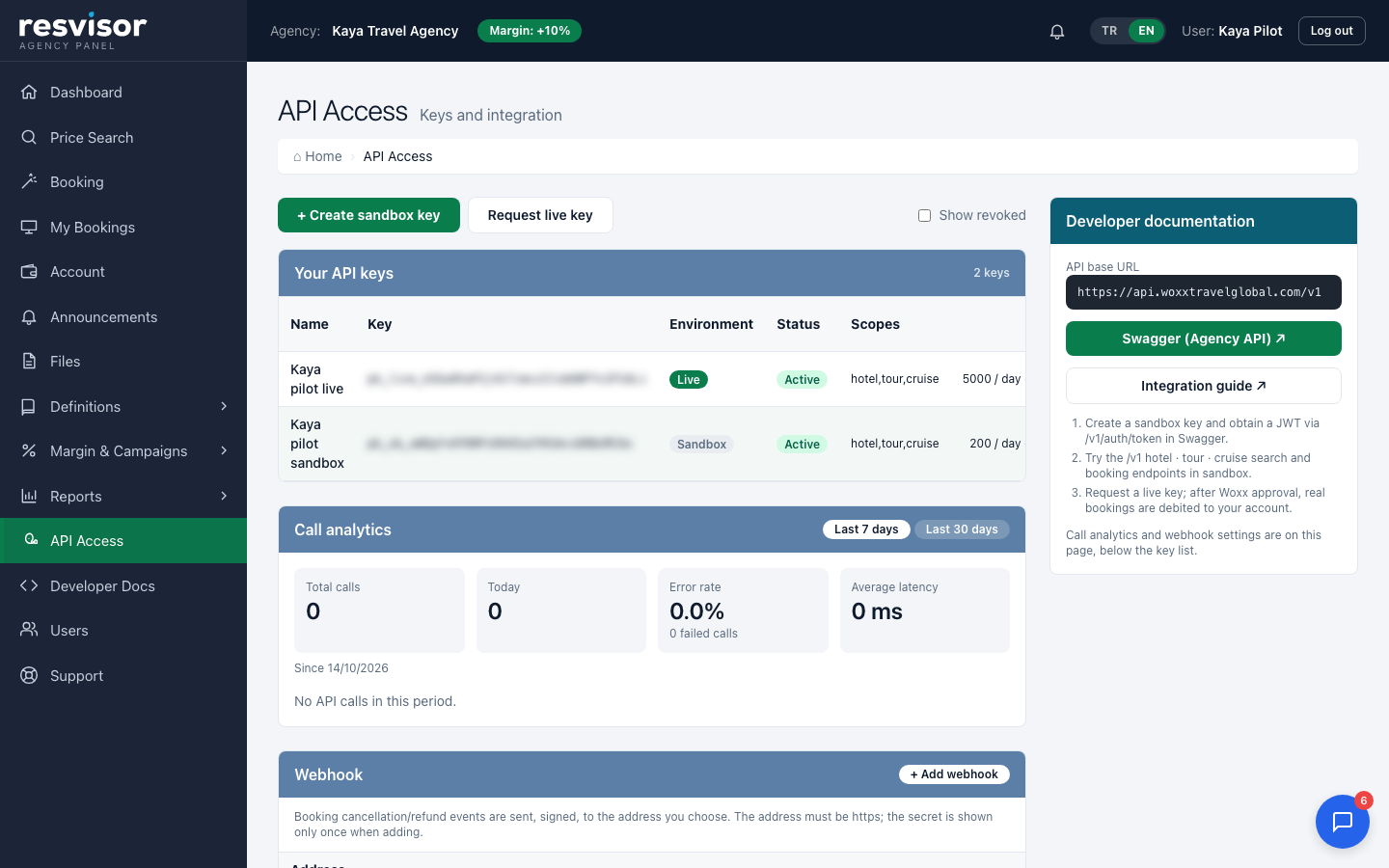
When you sign in you land on the API Access panel. All your key operations are here.
You see three things in the panel:
Create sandbox key — instantly creates a test key.
Request live key — requests a real sales key.
Your API Keys table — lists all the keys you own.
The panel — key creation buttons and your key list.
The columns: Key (its id), Environment (sandbox/live),
Status (active/revoked…), Created date and Action (revoke).
For status meanings, see the Key statuses section.
5
Create a sandbox (test) key
Before going to real sales you try everything with a test key. This is the most important step.
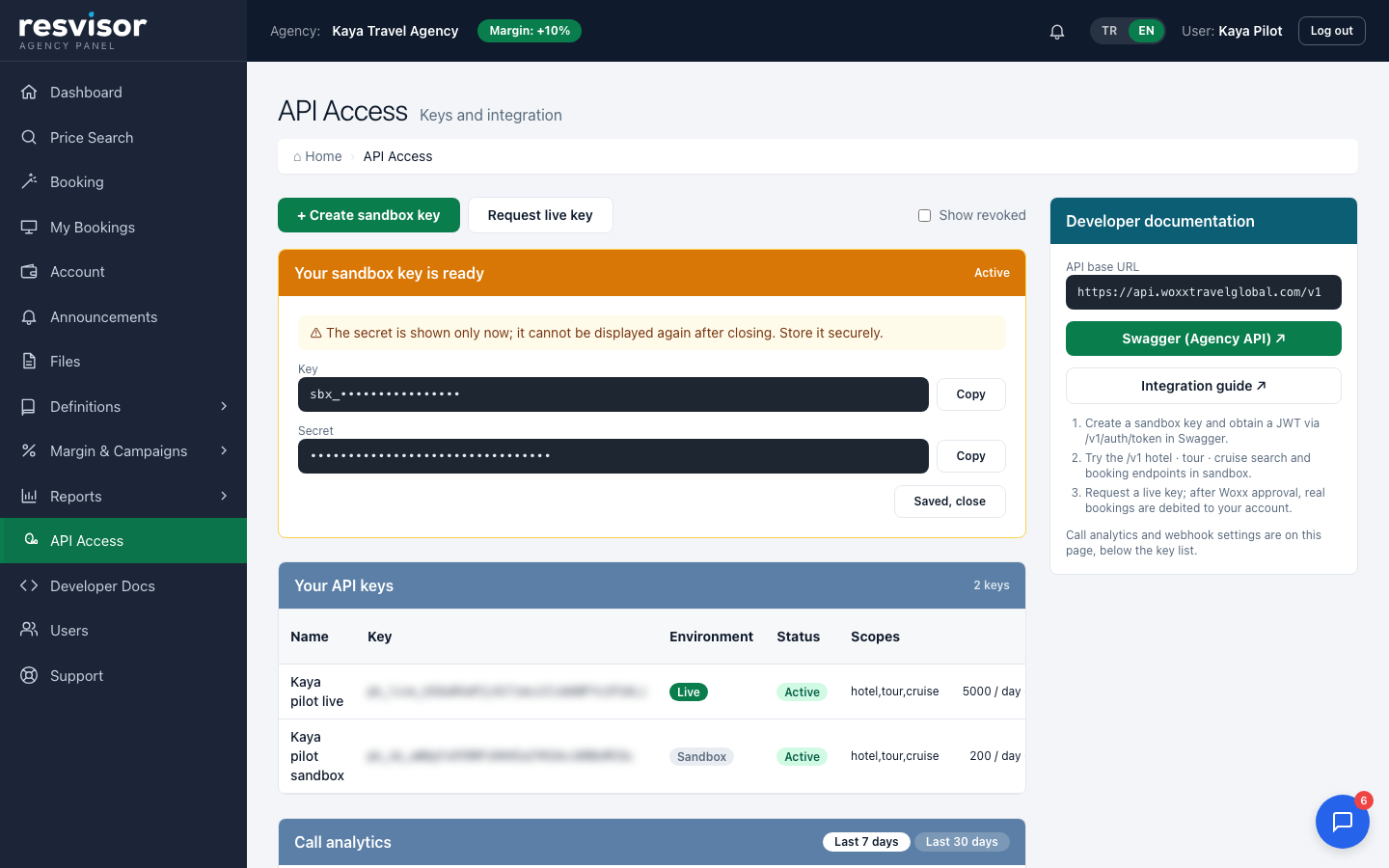
Click the Create sandbox key button in the panel; optionally give the key a name and click Create.
An orange box opens at the top of the page containing the API Key and the Secret.
Copy both and store them somewhere safe. (The Copy button on each row helps.)
Click Saved, close. Your key starts appearing in the table.
Key created — API Key + Secret. (Masked in the image for security.)
⚠ Very important: the Secret is shown only ONCE
After you close this box you cannot see the Secret again. If you don't save it now,
that key is useless — you'll have to create a new one. You can see the API Key later from the table,
but never the Secret. Do not share it with anyone.
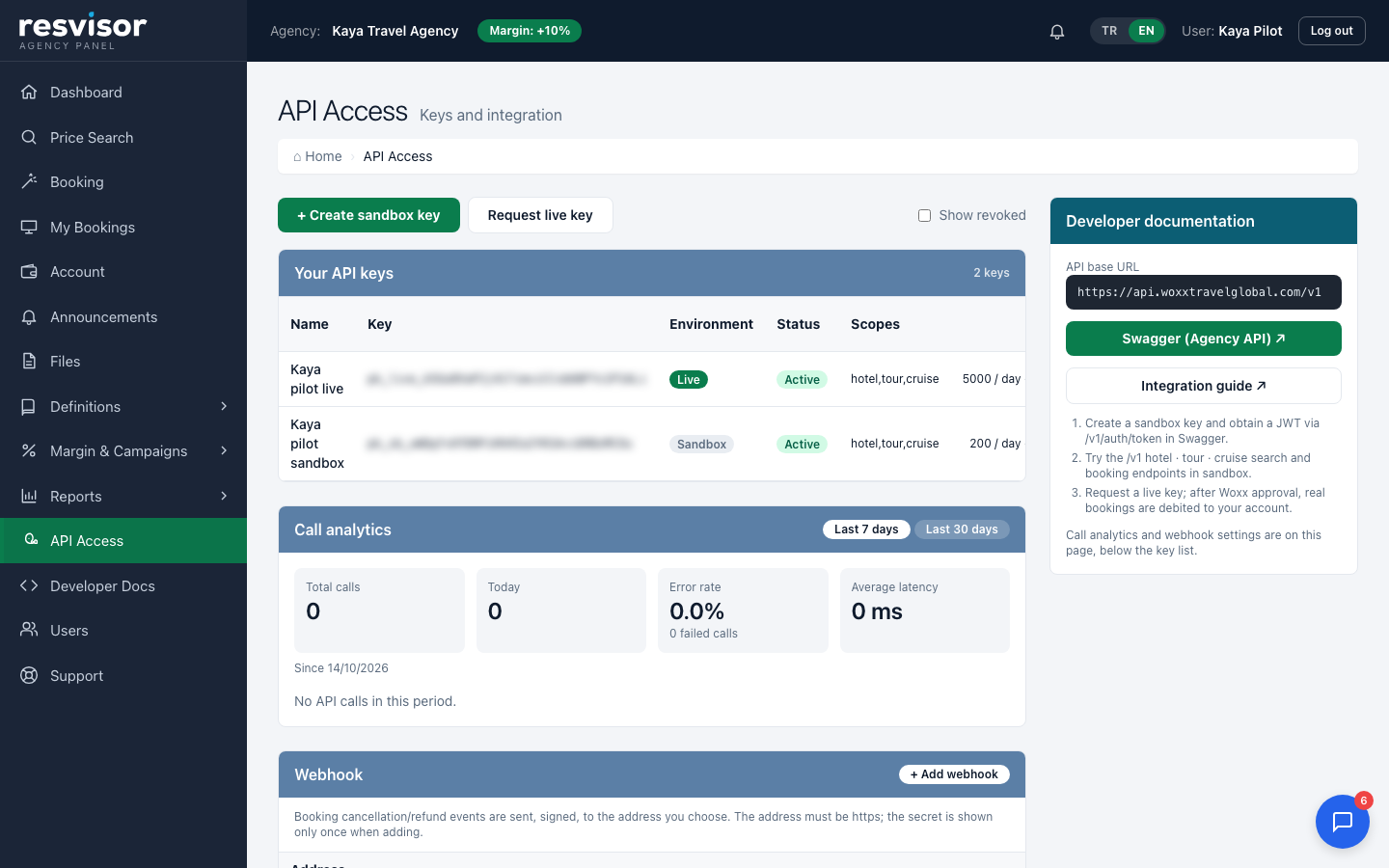
Your new key is added to the list — environment sandbox,
status active.
6
Request live access
When your testing is done, you request a live key for real sales.
Click the Request live key button in the panel.
Your request goes to Woxx. After certification/approval your live key becomes active.
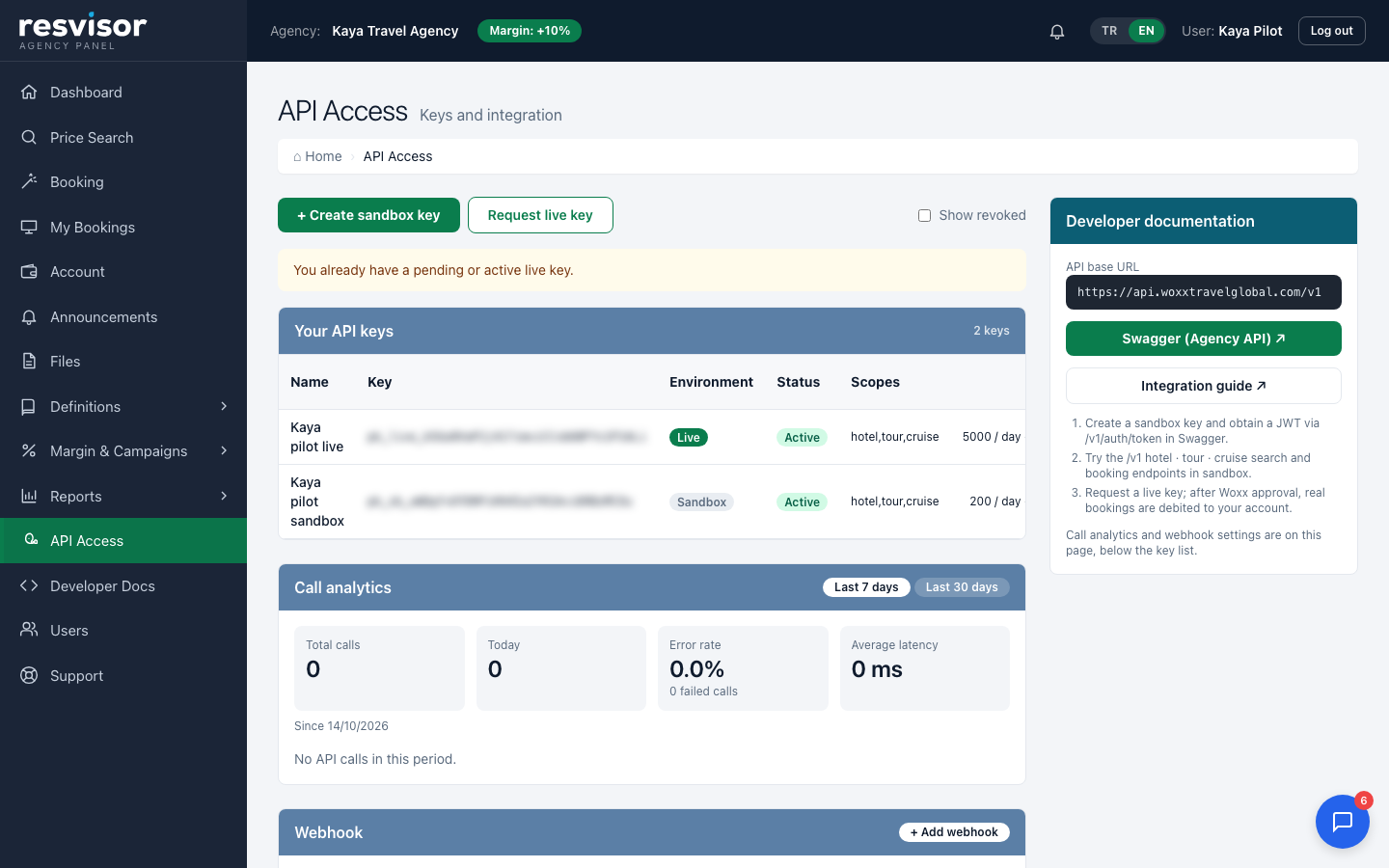
If you already have a pending or active live key, the system warns you (as shown below).
Live access — if you already have a live key, an info message appears.
Live = real money
Every booking made with a live key is actually created and posted as debt to your current account.
Before going live, be sure to fully validate your integration in sandbox.
7
Make your first call (sandbox)
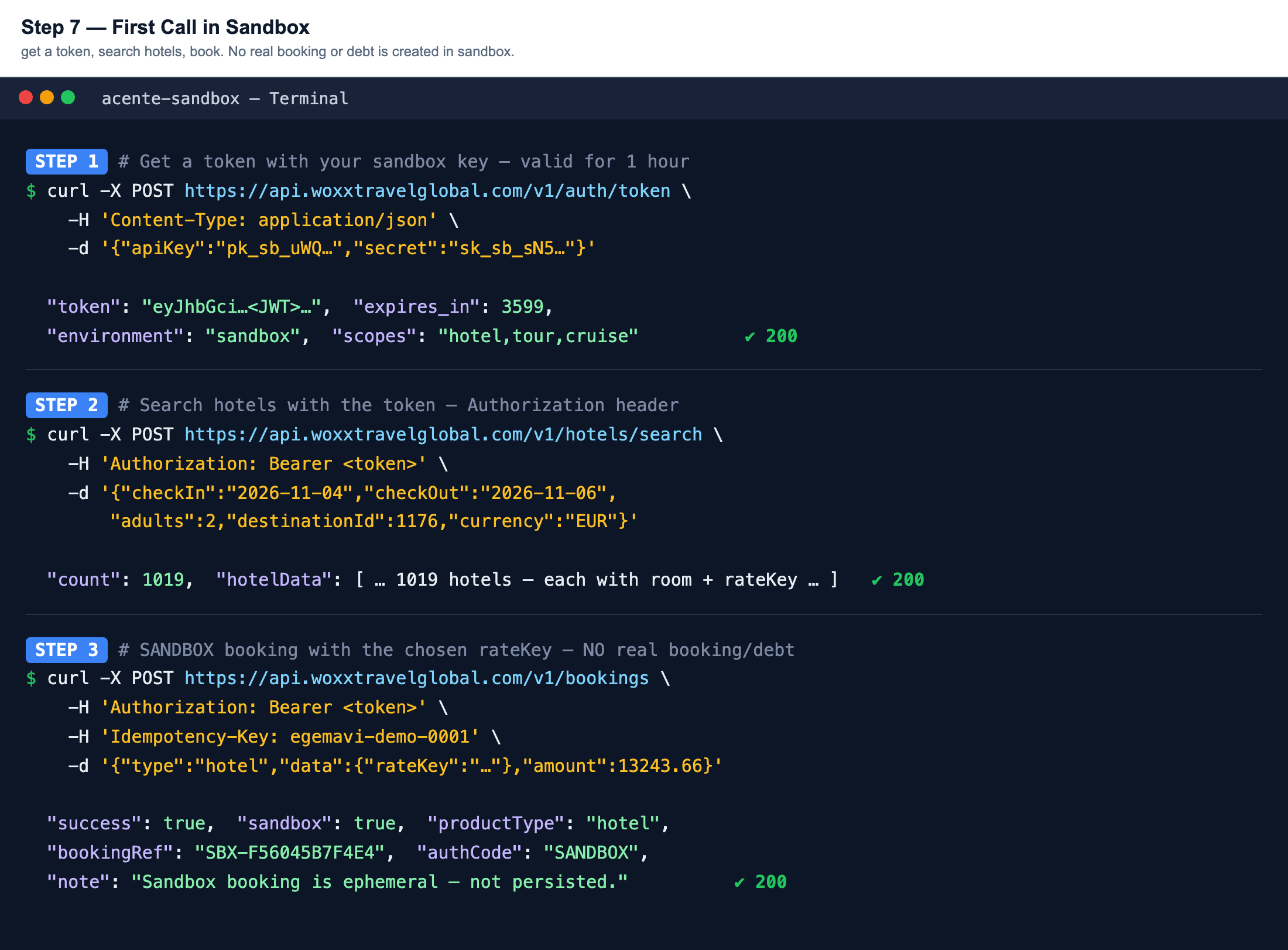
Your key is ready. Let's see it work — three simple steps: get a token → search → book.
The three requests below are the foundation of your integration. These examples use curl
but you can do the same from any programming language.
Get a token: send API Key + Secret, receive a token valid for 1 hour.
Search hotels: put the token in the Authorization header and search;
each hotel comes back with a rateKey.
Book: send a booking request with your chosen rateKey.
In sandbox the response starts with SBX-… — no real reservation is created.
A real sandbox run: token → 1019 hotels → SBX-… mock booking.
Detailed technical documentation
For all endpoints, field descriptions, error codes and sample responses, see the
Developers (/developers) page in the portal. There you can also try requests
from the browser via Swagger (Interactive API).
Key statuses & revocation
The Status column tells you what state each key is in:
Status
Meaning
active
Working — you can make requests.
pending
Awaiting approval (usually a new live request). Not usable yet.
suspended
Temporarily suspended. Contact Woxx.
revoked
Cancelled — permanent, no longer works. Stays in the table as a record.
To revoke a key, click Revoke in the
Action column of that row and confirm.
Revocation is irreversible
Once you revoke a key it never works again. If you suspect a key has leaked,
revoke it immediately and create a new one.
Selling from the panel — no API needed
Without any API integration you can search prices and book directly in the Resvisor panel.
For sales your team makes over the phone or at the desk, this is all you need.
Step-by-step guides with screenshots for the b2b.resvisor.com sales panel: Agency manager · Sales staff
Dashboard — everything on one screen
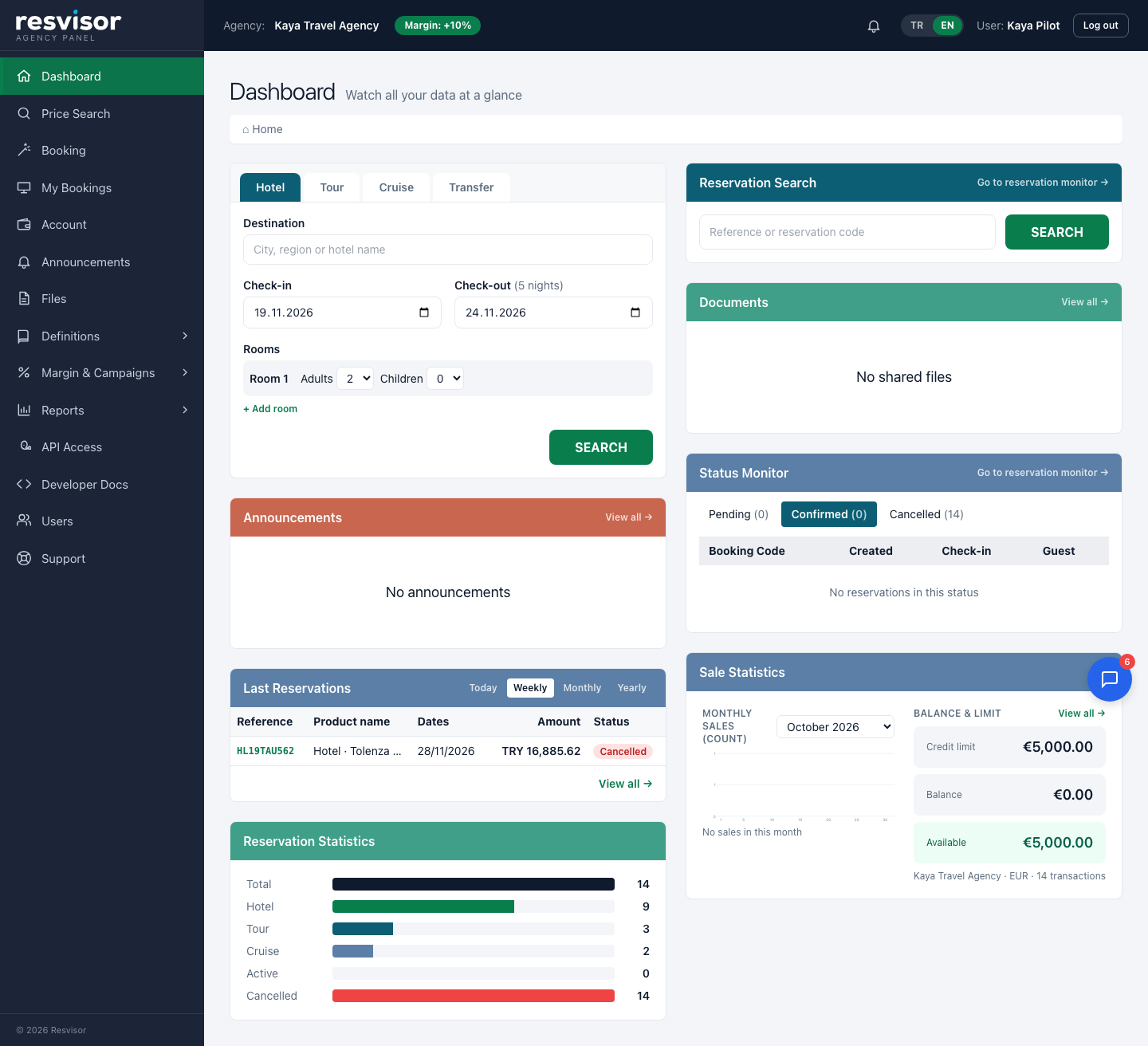
The Dashboard that opens after login brings most of the daily work together:
Search box — search prices straight from the Hotel, Tour or Cruise tab.
Reservation Search — find a booking by its reference or short code (e.g. HL05TAAMQ6).
Status Monitor — Pending, Confirmed and Cancelled tabs list your bookings with code, check-in date and guest.
Last Reservations — bookings made today, this week, this month or this year.
Announcements and Documents — the latest announcements and files shared by Woxx.
Statistics — booking counts by product and status, monthly sales chart; for managers also credit limit, balance and available amount.
Dashboard — search box, reservation search, status monitor, last reservations, announcements and statistics.
Tip Users with the Sales staff role do not see the balance and limit box.
1. Search prices
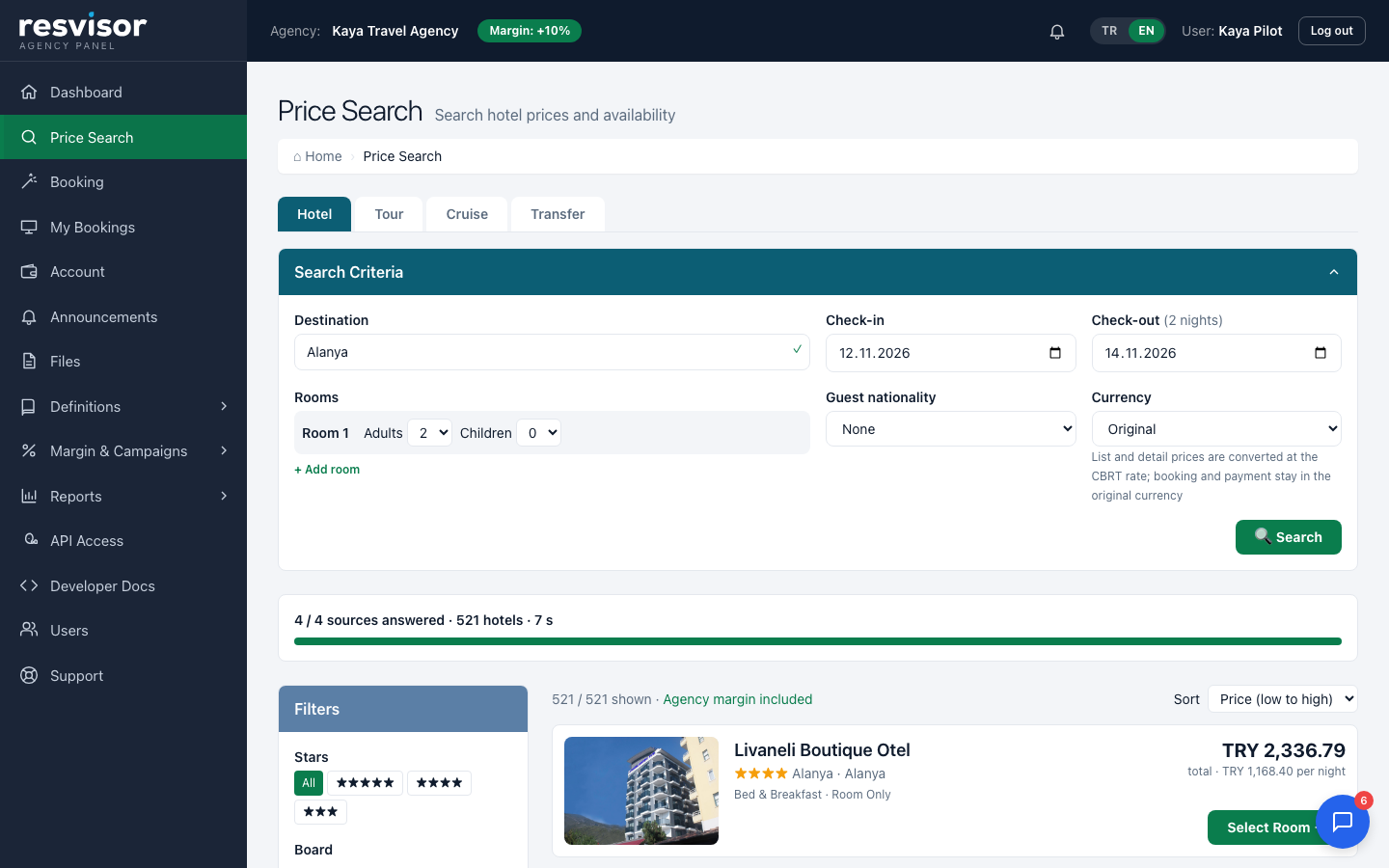
Open Price Search in the left menu and pick the Hotel, Tour or Cruise tab.
Enter destination, dates and rooms/guests, then click Search. Results are added as each source answers.
Prices shown are your selling prices including your agency margin. Filter by stars, board and price range.
Price search — criteria, filters and margin-inclusive results.
2. Make a booking
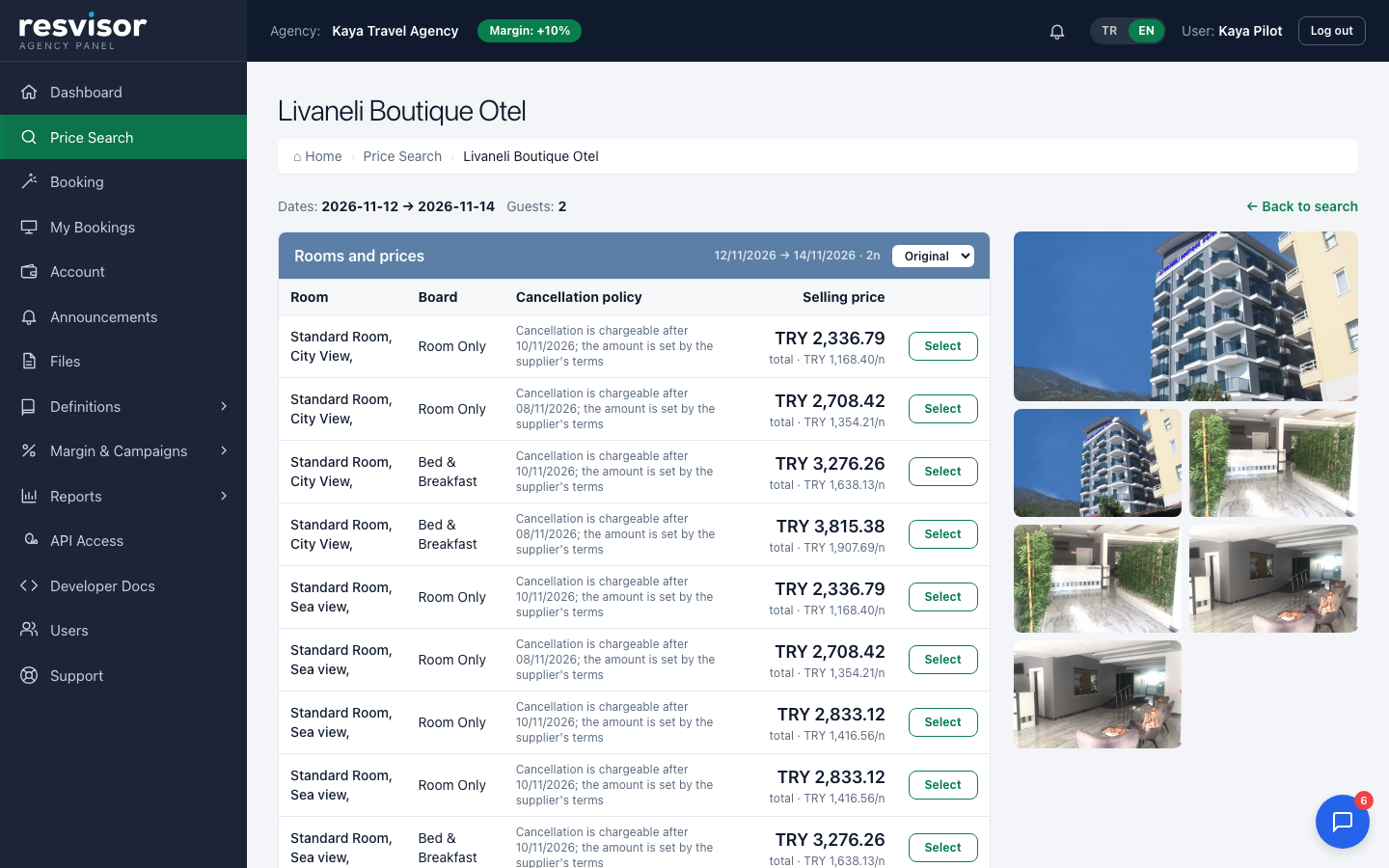
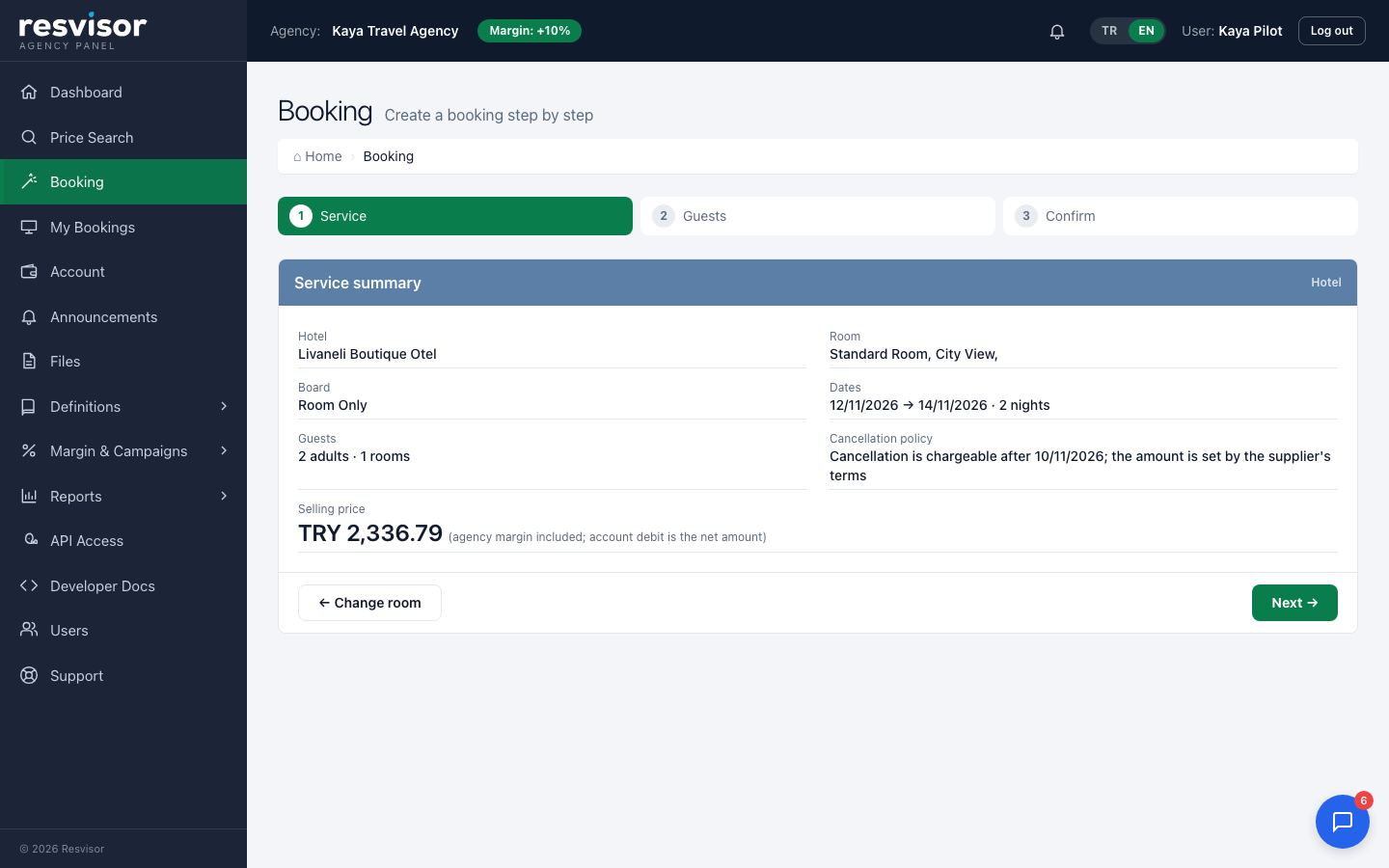
Click Select room on a hotel card, choose room and board, then click Book.
The wizard has three steps: Service (summary and cancellation terms) → Guests (lead guest and travellers) → Confirm.
On the confirm step accept that the amount is charged to your account and click Complete booking.
The booking code (e.g. HL07TA4RDU) and voucher are ready immediately.
Hotel detail — choose room and board.Booking wizard — step 1: service summary, cancellation terms and selling price.
3. Track your bookings
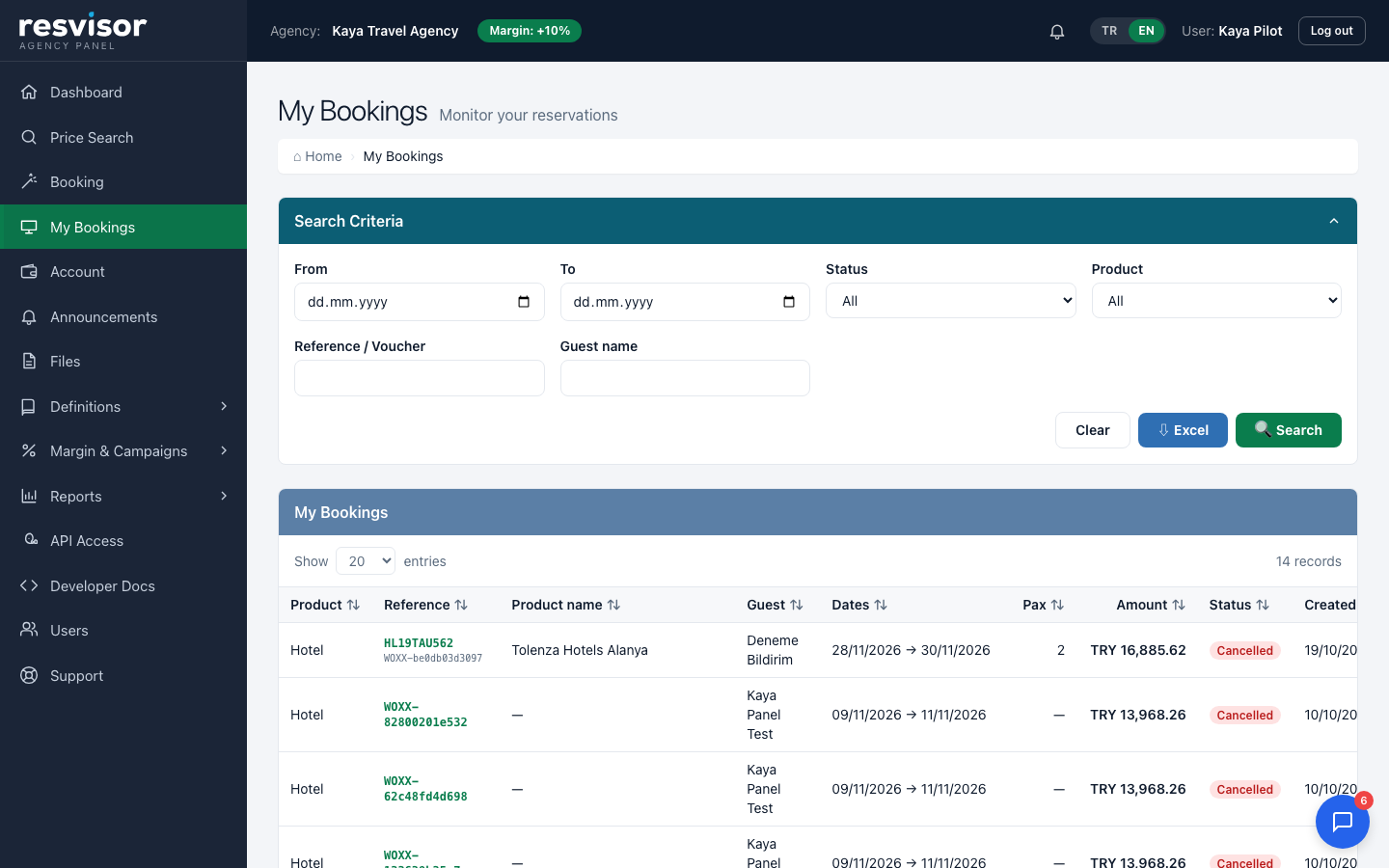
My Bookings lists all your bookings with code, dates and status; search by date, status, product, code or guest name and export to Excel.
Every booking has a short code (HL… for hotels, OT… for tours); you can search with the short code or the long reference.
My Bookings — short code, product, dates, amount and status.
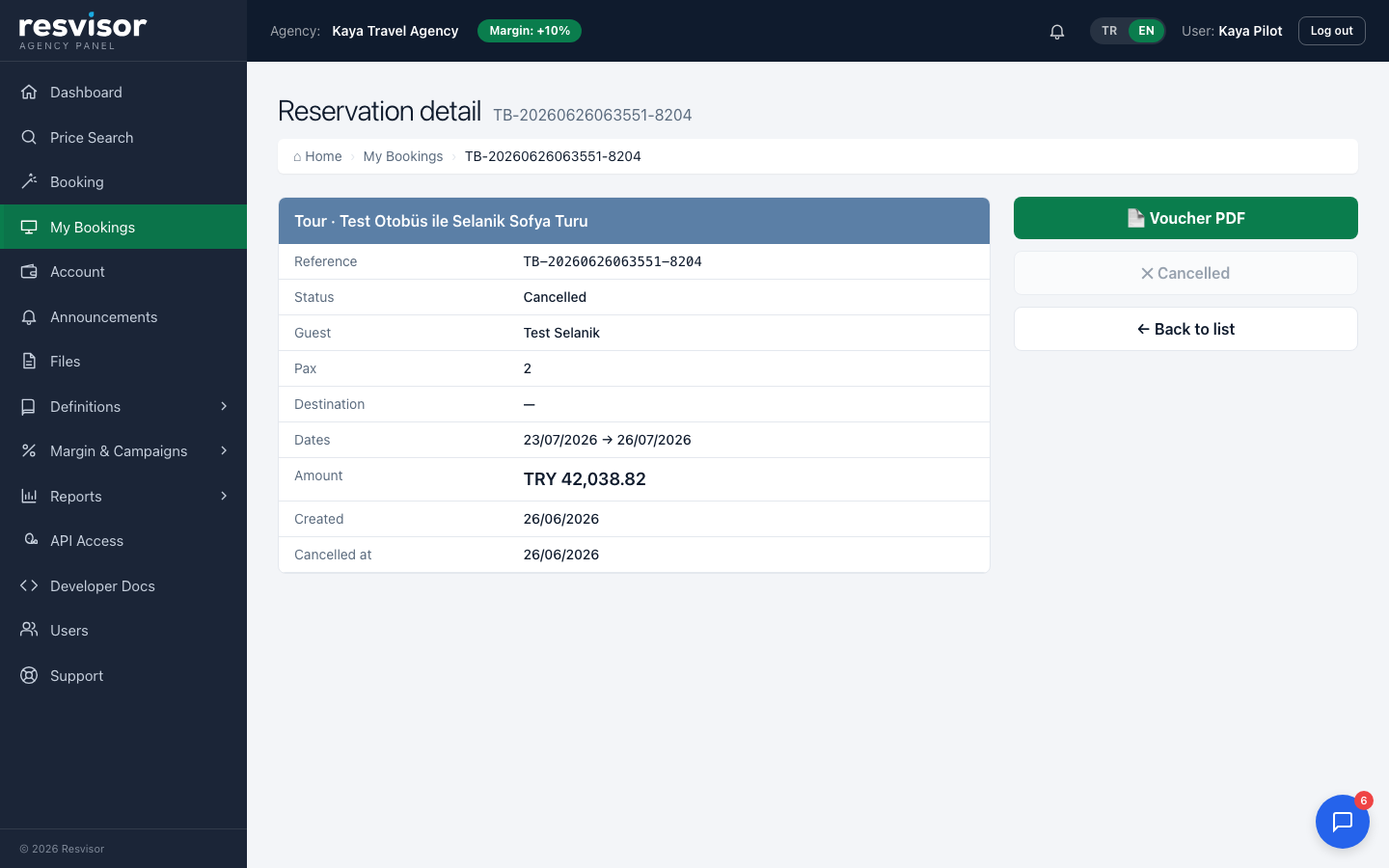
From a booking's detail page you download the Voucher PDF, see the cancellation terms and cancel. For hotel and tour bookings the voucher
is issued in Resvisor's name: short code, dates, guests, sale amount and a status band (confirmed / cancelled); no supplier name or purchase price.
Booking detail — status, guest, dates, amount; Voucher PDF and cancel on the right.
4. Your account
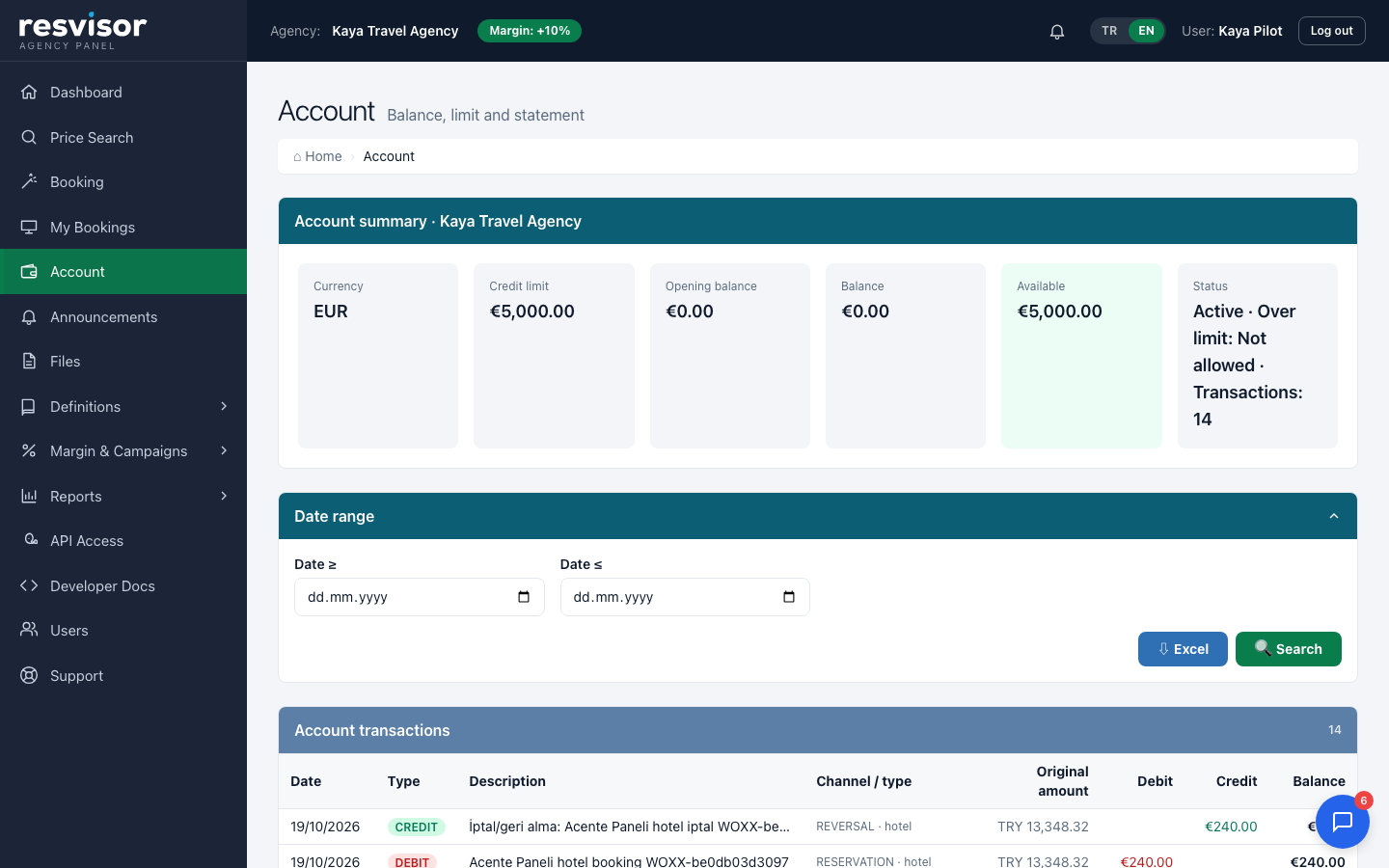
The Account page shows your credit limit, balance and available amount; every booking and cancellation is listed as a transaction.
When the limit is used up no new booking can be made; available amount opens up as your payments are processed.
Account — limit, balance, available amount and transactions.
5. Users and permissions
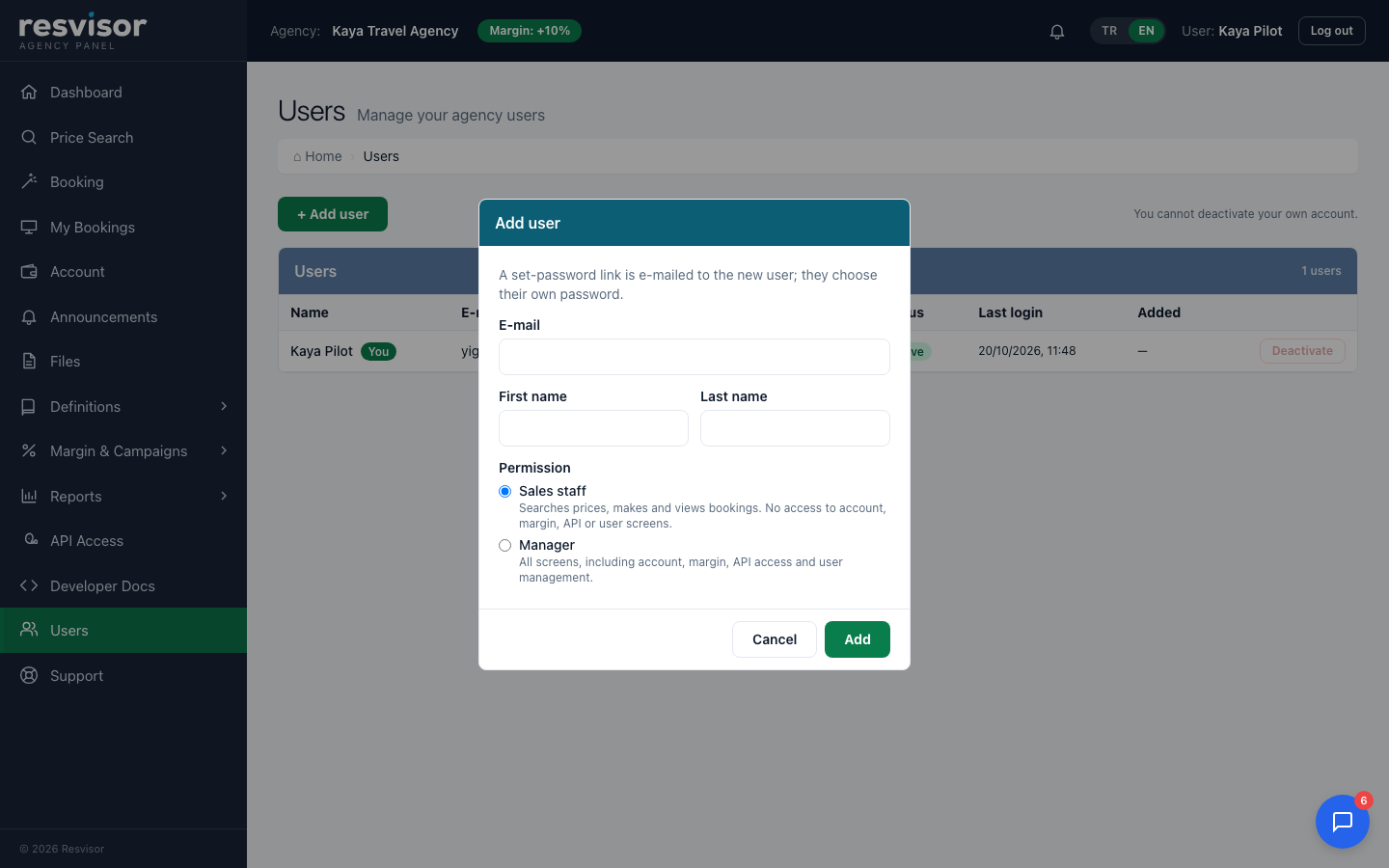
Add your staff under Users → Add user; each new user receives a set-password e-mail. There are two permissions:
Permission
What they can do
Manager
All screens: price search and booking, account, margin and campaigns, API access, adding and deactivating users.
Sales staff
Searches prices, makes and cancels bookings, sees bookings and vouchers; sees campaigns, stop-sale report, announcements and files.
Cannot see the account, margin, API access or users screens.
Add user — choose Sales staff or Manager.
Tip You cannot deactivate your own account; close a leaving employee's account with Deactivate.
6. Support
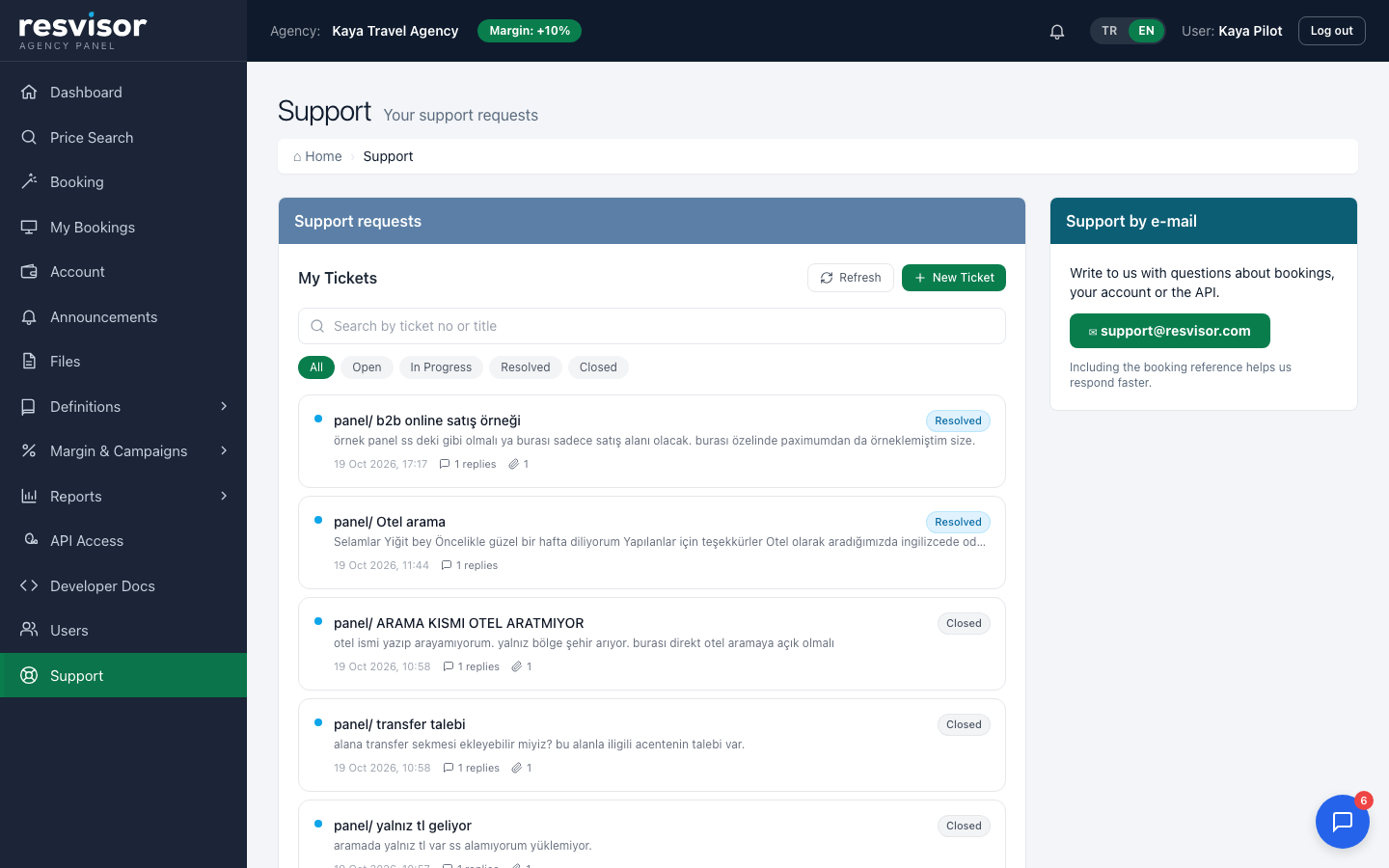
Open a ticket from the support button at the bottom right or the Support page, and follow replies and statuses (open, in progress, resolved) there.
Support — my tickets, search and status filters.
7. Notifications and phone setup
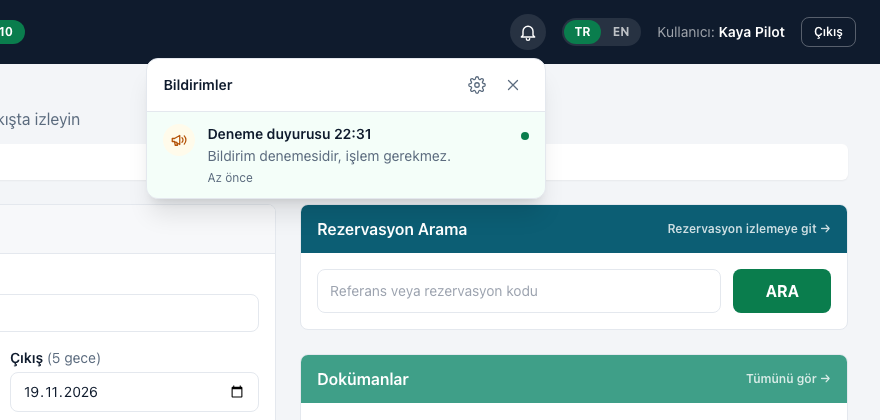
The 🔔 bell in the top bar collects the events that concern you: result of your cancellation request, refund, option deadline approaching / option expired, reply to your support ticket and new announcement. Click a row to open the related booking, ticket or announcement.
Who sees what? Sales staff receive notifications only for bookings they made; managers for all of the company's bookings. Announcements go to everyone.
Bell — newest first, unread marked with a dot.
The ⚙ icon in the bell panel opens Notification settings: choose with switches which topics (Booking · Support · Announcement) are sent to your phone. A topic you switch off still appears in the bell.
Phone setup (once, about a minute):
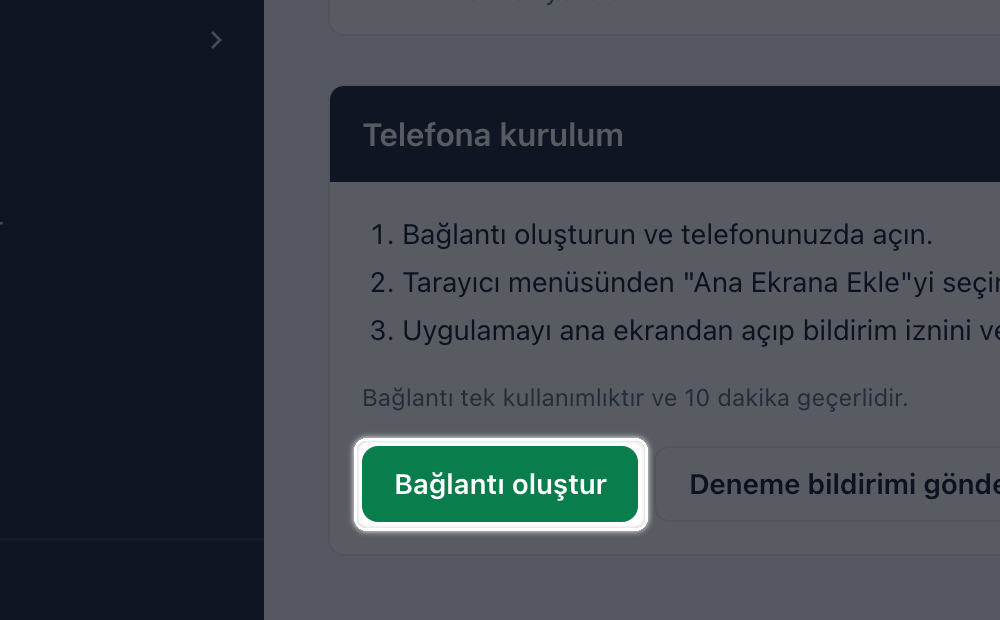
In Notification settings press Create link, copy the link and send it to your phone (valid for 10 minutes).
Open it on the phone with Chrome (Android) or Safari (iPhone); the Resvisor Notifications page opens signed in.
Android: ⋮ → Add to home screen → Install. iPhone: Share → Add to Home Screen.
Open it from the Resvisor icon on the home screen, then Allow notifications → Allow. A test notification arrives on your phone.
Notification settings → Phone setup → Create link (screen shown in Turkish).
More than search — what the platform offers
Resvisor Agency API is not just a search engine; it is end-to-end
sales infrastructure. Once you have your key, here is what you get:
🧩 Developer-friendly kit: Swagger (interactive API docs), a Postman collection,
sample requests/responses and documentation. Your dev team integrates within hours.
(The /developers page in the portal is the first stop.)
🔔 Instant webhook notifications: when events such as cancellation/refund occur, a signed
notification is sent to your system automatically — no constant polling needed.
🔄 Post-booking management: status lookup, cancellation and refund requests — all
via the API. You are not left alone after the sale.
🖼️ Rich content: hotel photos, descriptions, amenities and destination data —
ready content to build your own site completely.
🛠️ Two integration paths: integrate via the API in code, or sell from our ready-made
B2B panel with no code at all. Pick what fits you.
Why Resvisor?
Beyond the global providers, close to you: a broad Türkiye-focused inventory,
local team support, cruise and own-contract products, card-free account sales.
Security rules
Never share the Secret. Email, message, screenshot — don't send it in the clear anywhere.
Don't embed the Secret in a browser/mobile app. Make requests from your own server.
Develop in sandbox, sell in live. Switch to live when testing is done.
Revoke when in doubt. If there's any chance of a leak, revoking and creating a new key takes seconds.
IP restriction (optional): you can restrict your live key to work only from your own
server IP — request this from Woxx for extra security.
Frequently asked questions
I made a booking in sandbox — was it real?
No. Sandbox is entirely a test; the response comes with SBX-… and no real record/debt is created.
I lost the Secret, what do I do?
The Secret can't be shown again. Revoke that key and create a new one; save the new Secret immediately.
How long is a token valid?
1 hour. When it expires, get a new token with the same API Key + Secret — your key doesn't change.
When do I get a live key?
After you click "Request live key", with Woxx approval. It activates once the credit limit and required agreement are complete.
Why do I see prices without markup in the search list?
Your agency margin is applied on hotel detail and at booking; the list price is the base price. This is normal.
Which products can I sell?
Hotel, tour and cruise, depending on your key's scope. You see your scope in the scopes field of the token response.
Stuck?
Use the Contact link in the portal or your assigned Woxx representative for support.
For technical integration, the /developers page + Swagger is the fastest start.